
Unleashing Agent Control on the Browser
Imagine a developer asking their AI assistant to "find out why this page is slow" or "test this new user flow." Instead of merely analyzing code, the AI can now open a live Chrome browser, navigate, click elements, fill forms, and even analyze network requests. This capability comes from Chrome DevTools MCP, a tool that effectively gives AI agents eyes and hands in the browser, making them powerful partners in web development.The Model-Context-Protocol (MCP) server acts as a bridge, allowing AI coding assistants to access the full suite of Chrome DevTools functionality. This includes recording traces to extract actionable performance insights, analyzing network requests, taking screenshots, and inspecting browser console messages with source-mapped stack traces. This functionality promises to automate web debugging, offering a practical guide for developers.
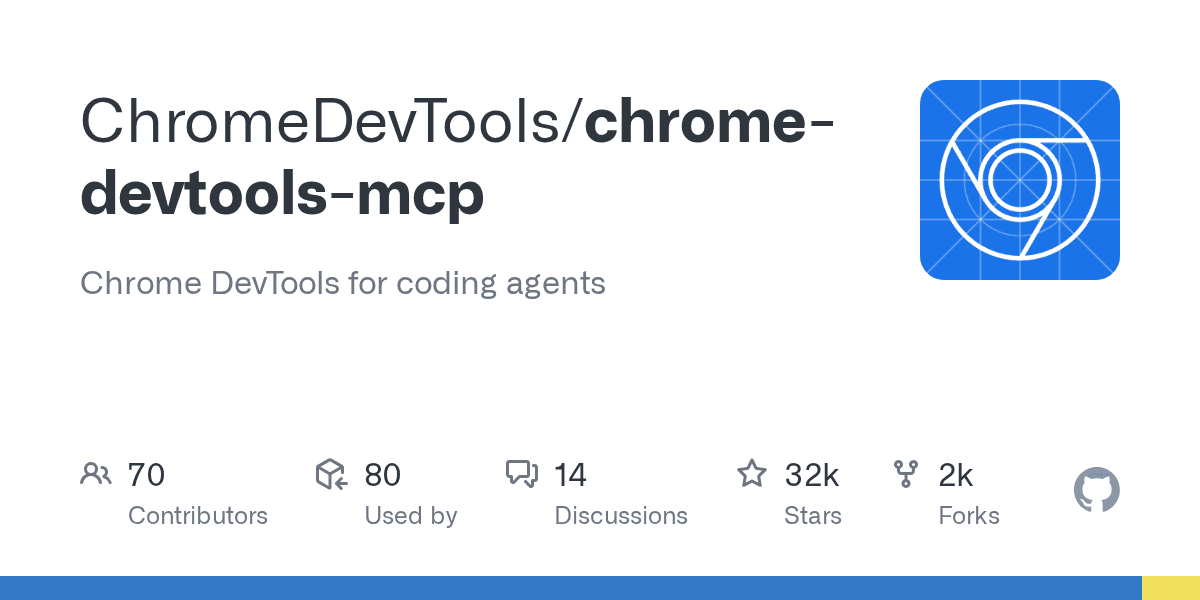
The underlying automation leverages Puppeteer, enabling reliable automation and automatically waiting for action results. This level of control means AI can perform tasks like input automation (9 tools), navigation (6 tools), emulation (2 tools), performance analysis (4 tools), network inspection (2 tools), and debugging (6 tools), totaling over 20 specialized tools. The project has garnered significant community interest, reflected in its 31.9k stars on GitHub.
Integrating AI into Everyday Workflows
The power of Chrome DevTools MCP lies in its broad integration with popular AI coding agents and development environments. It supports clients like Amp, Antigravity, Claude Code, Cline, Codex, Command Code, Copilot CLI, Cursor, Factory CLI, Gemini CLI, Gemini Code Assist, JetBrains AI Assistant, Junie, Kiro, Katalon Studio, OpenCode, Qoder, Visual Studio, Warp, and Windsurf. This wide adoption ensures developers can seamlessly incorporate browser control into their existing AI-powered workflows.Google's introduction of Gemini CLI extensions further underscores this integration strategy. Developers can make the Gemini CLI uniquely their own by connecting it to everyday tools and workflows. For instance, configuring Gemini CLI to use Chrome DevTools MCP allows AI to perform browser-based tasks directly from the command line, customizing developer experience and boosting efficiency. This deep integration makes the AI a true extension of the developer's toolkit.
Security, Data, and Advanced Usage
While Chrome DevTools MCP brings immense utility, developers must understand its disclaimers. The tool exposes browser content to MCP clients, allowing inspection, debugging, and modification of any browser data. Users should avoid sharing sensitive information if they do not wish for it to be accessible by MCP clients. The tool officially supports Google Chrome and Chrome for Testing, requiring Node.js v20.19 or newer.For advanced use cases, developers can connect Chrome DevTools MCP to a running Chrome instance. This is particularly useful for maintaining application state, signing into websites that block WebDriver-controlled browsers, or connecting to Chrome from a sandboxed environment. Options like `--autoConnect` (for Chrome version 144+) allow automatic connection to a running browser, while `--browserUrl` facilitates manual connection via a remote debugging port. Users should exercise caution when enabling remote debugging, as it opens up a port that other applications can access.